If you’re familiar with any C-style language, you’ve likely had some experience with formatting numbers and text there. In Python, for example, if you wanted to display the number pi as “3.14,” you’d type '%4.2f' % pi–four characters total, two of which are used for the fractional part, with the character f denoting a floating-point number. This is part of the C-style format specification syntax. Fortran’s formatting rules are similar, but with plenty of differences that will take some time getting used to. Otherwise, if you’re new to formatting text and numbers, it may be even easier for you to learn Fortran’s format strings from scratch.
Let’s take a look again at the crux of our formatting code from listing 6.5:
dashfmt = '(2(f9.5, 2x), f7.1, 2x, 4(i3.3, 2x), l)'
write (dash, dashfmt) lat, lon, alt, eng, airborne
The formatting string consists of comma-separated substrings that are each made of different letters and numbers. Letters will denote different data types, and numbers will instruct how many spaces to provide for output, or how many times to repeat the formatting instruction. This is a quite tedious part of the language, so don’t worry if it feels overwhelming at first. You don’t have to learn the complete syntax at once, and you can come back to it at any time when you need it. Let’s see how it works, step by step.
Formatting real numbers
A formatting string consists of one or more substrings, each made of a letter and one or more numbers. We’ll start by formatting the latitude, longitude, and altitude parameters:
real :: lat = 59.329444, lon = 18.068611, alt = 11678.3
Their values fall in the range of (-90, 90) degrees, (-180, 180) degrees, and (0, 99999) meters, respectively. This means that we need to reserve at least three characters for the integer part of the value (left of the decimal point) for lat and lon. We also need to display the coordinates with the precision down to 0.00001 degree, so we’ll reserve five characters for the fractional part. In total, this will require nine characters (including the decimal point).
To format a real or complex number, use f (floating-point; for example, 523.11) or e (exponential; for example, 5.2311 × 10²) edit descriptors. These descriptors must be followed by an integer number representing the total width, a period, and an integer number representing the fractional (in the case of f) or the exponential (in the case of e) part. For example, the number pi formatted with f8.3 will be displayed as " 3.142" (three leading blanks), whereas the same number formatted with e8.3 will be displayed as .314E+01. These are illustrated in figure 6.3. In general, use the exponential format for very small (< 0.01) or very large (> 1000) numbers, and the floating-point format otherwise. The exponential format allows two additional flavors, namely the engineering one (en) and the scientific one (es). I leave it to you as an exercise to explore how these two work.
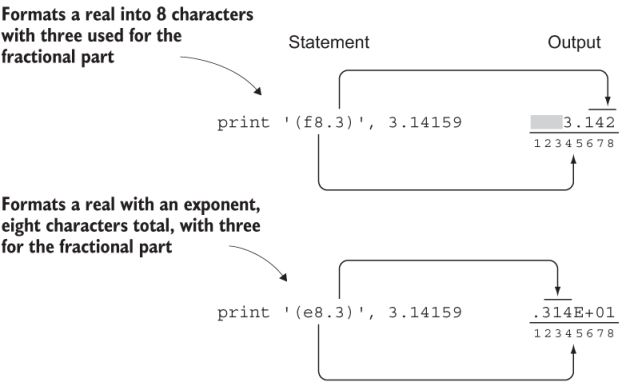
Figure 6.3 Example of formatting a real number for output. The gray spaces represent empty spaces or blanks. The numbers underneath each output indicate character positions.
Back to latitude and longitude. We’ll format them as floating-point (f) numbers having a total of nine digits (including the decimal point), with five digits for the fractional part: f9.5.
To format two values using the same formatting string, we can add a number to the front of the string: 2f9.5. Not so fast, though. As is, this format string will yield "59.3294418.06861" as output. These are our latitude and longitude values, but without any blank spaces between them. To add two empty spaces after each value, we’ll compose our format string as 2(f9.5, 2x). We now get " 59.32944 18.06861 ". Much better! The leading space in this string is due to the fact that our integer part is three characters wide (9 minus 5 minus 1 for the decimal point). You can use the edit descriptor, x, to insert one or more empty spaces in combination with any other format string. For example, 5x will insert five empty spaces, and 100x will insert a hundred.
Now that we’ve formatted the latitude and longitude values, formatting the altitude is easy. From the design spec, we have the requirement to display up to a 0.1 m precision, and we can safely assume that this aircraft won’t fly above 100 kilometers in altitude. So our formatting string will be f7.1–five digits for the integer part, and one digit for the fractional part. Our formatting string so far is 2(f9.5, 2x), f7.1, and our output is
59.32944 18.06861 11678.3Formatting integers
Now we can tackle the display of our integer values–the four-element array of values describing engine load, one for each engine:
integer :: eng(4) = [96, 96, 95, 97]To format an integer, we’ll use the letter i followed by the number of characters that will be reserved to display the value. For example, 34 formatted with i5 will be output as " 34" (three leading blanks, for a total of five characters). Optionally, you can specify the number of digits that must be output, even if they’re leading zeros. For example, i5.5 applied to 34 will output 00034.
Formatting an integer is illustrated in figure 6.4. With print '(i4)', 42, we make sure that the number 42 will be output using exactly four characters, no more and no less. As a result, we get 42 (two leading blanks) in the output. If the number we output was a three-digit number, such as 123, we’d end up with one leading blank. In the second example, print '(i4.3)', 42, we specify that we want four characters, with at least three of them being nonblank. Thus, for any one- or two-digit number, the compiler will add leading zeros to satisfy this requirement.
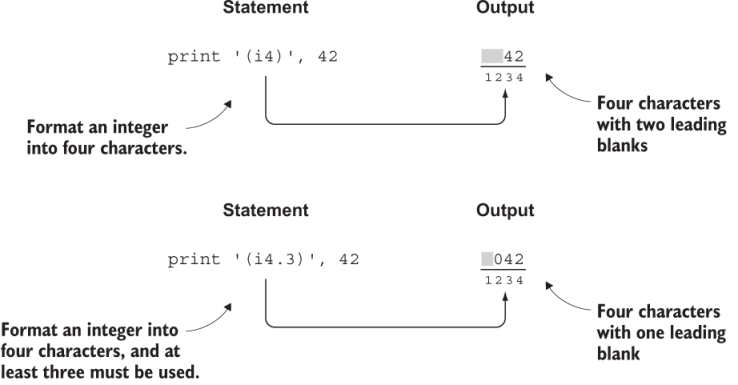
Figure 6.4 Example of formatting an integer for output. The gray spaces represent empty spaces or blanks. The numbers above each output indicate character positions.
Back to our task. The engine load is an array of four integers that go from 0 to 100. We’ll display any leading zeros (rather than blanks), so the format string will be 4(i3.3, 2x), and it will yield:
096 096 095 097Both i and f edit descriptors allow a field width of zero; for example, i0 or f0.2. This instructs the compiler to use the minimum width necessary to display the variable. This is useful when you want to format your numbers just wide enough that they can be properly output, but don’t care about the total width of your output changing from line to line.
Formatting logical and text values
To format character and logical variables, use a and l, respectively. These can stand on their own, and the compiler will use exactly the number of characters needed to display them entirely. Alternatively, you can limit the number of characters used by appending an integer width to them. For example, applying a7 to “Hello world” will print “Hello w.” You can use edit descriptor g in place of any built-in type (i, f, e, a, or l), as long as you properly set the total width and the width of the fractional part (in the case of f). Note that while both g and * will match any data type, g gives you explicit control over formatting, whereas * will allow the compiler to format values the way it sees fit.
Finally, as the airborne status is a logical scalar, we’ll use just l to format it. This brings us to our final form of dashfmt:
dashfmt = '(2(f9.5, 2x), f7.1, 2x, 4(i3.3, 2x), l)'
write (dash, dashfmt) lat, lon, alt, eng, airborne
There’s a bit more nuance to formatting, but this is plenty to get you going. The edit descriptors, the data types that they apply to, and their example uses are shown in table 6.1.
Table 6.1 A summary of Fortran’s format string syntax
In read or write statements with parentheses, the format string is specified as the second positional or keyword argument. All of these statements are thus equivalent:
print fmt_string, 'User typed: ', trim(text), a, x
write (*, fmt=fmt_string) 'User typed: ', trim(text), a, x
write (*, fmt_string) 'User typed: ', trim(text), a, x
Whichever form you use is completely a matter of style. Pick one that’s easiest on your eyes and be consistent throughout your code.